Sample Layouts
Here, you'll find a number of layout ideas for how the Inquiry Form & Exam Scheduler can be used. Take a look at the different suggestions, and then head over to the Documentation Documentation page to learn more about what you can do to customize the form.
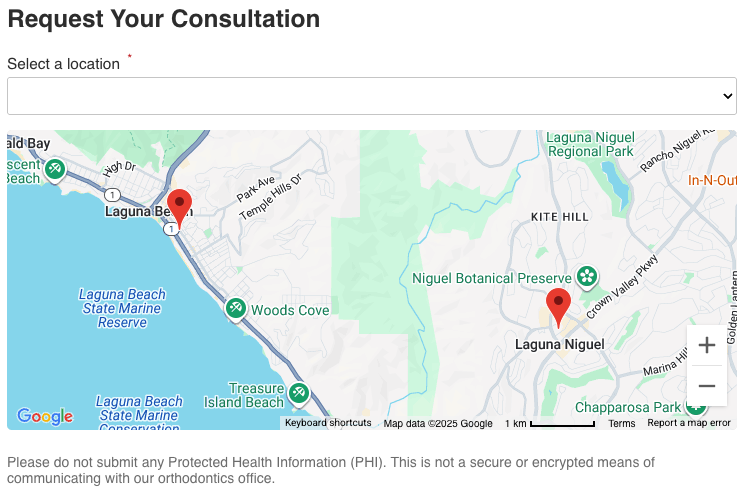
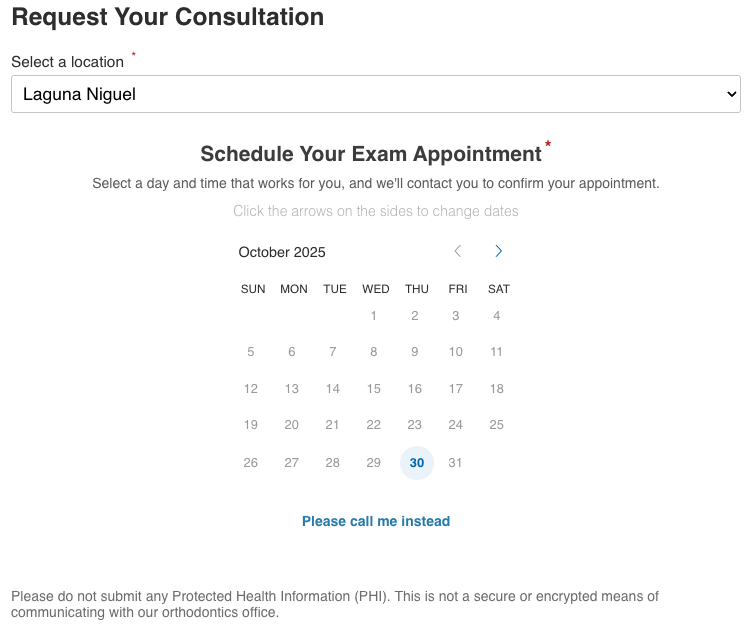
No Default Location
This setting is beneficial because it forces the user to do one task, then the next. Once they select a location*, the exam scheduler will appear, and once they've selected their appointment, then the rest of the form will appear for them to fill out and submit.
<div id="waveInquiryForm"
     data-doctor-id="test"
     data-no-default-location="true"></div>
<iframe src="https://wave-wes.s3.us-west-1.amazonaws.com/v8/index.min.html?data-doctor-id=test&data-no-default-location=true"></iframe>* If you are using the Google Maps integration, the map will be showing with this setting.
* This setting will only work if you have multiple locations.
* By default, the inquiry form loads the first location as the default location. You can override this by setting the "data-default-location" value.
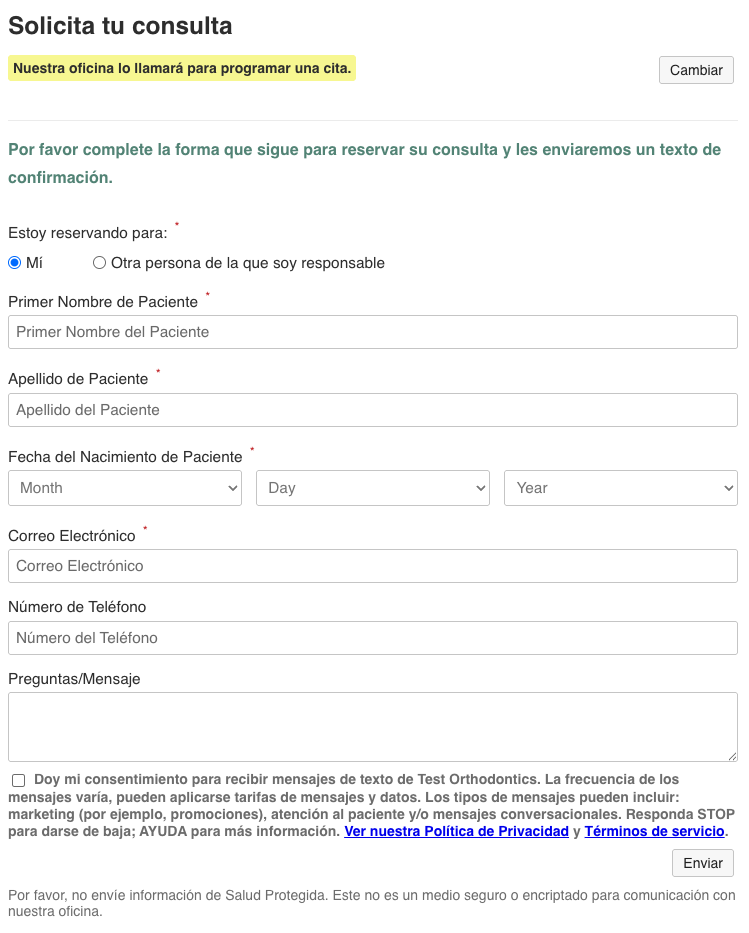
Spanish Form
This setting lets you display the form in Spanish
<div id="waveInquiryForm"
     data-doctor-id="test"
     data-language="Spanish"></div>
<iframe src="https://wave-wes.s3.us-west-1.amazonaws.com/v8/index.min.html?data-doctor-id=test&data-language=Spanish"></iframe>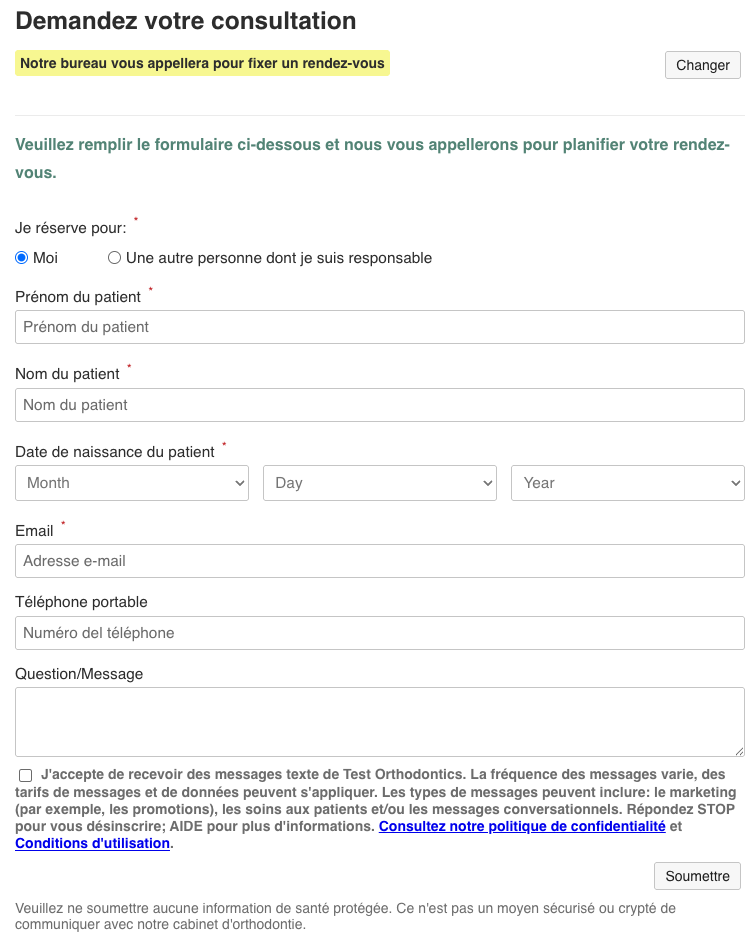
French Form
This setting lets you display the form in French
<div id="waveInquiryForm"
     data-doctor-id="test"
     data-language="French"></div>
<iframe src="https://wave-wes.s3.us-west-1.amazonaws.com/v8/index.min.html?data-doctor-id=test&data-language=French"></iframe>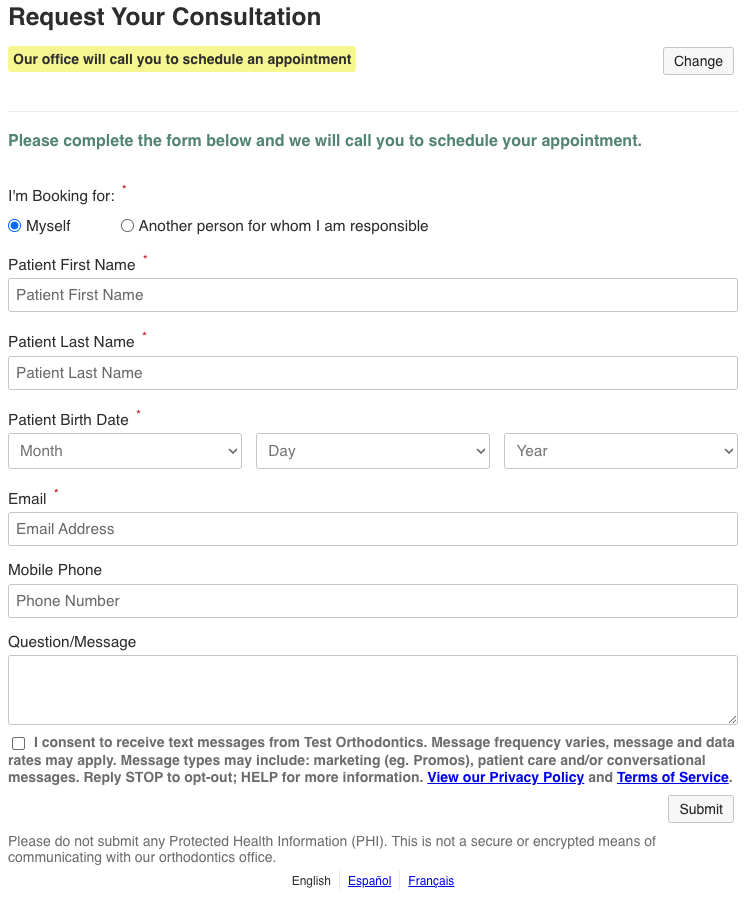
Language Switching Form
This setting lets you display a language switcher at the bottom of the form that changes the language.
<div id="waveInquiryForm"
     data-doctor-id="test"
     data-language-options="English, Spanish, French"></div>
<iframe src="https://wave-wes.s3.us-west-1.amazonaws.com/v8/index.min.html?data-doctor-id=test&data-language-options=English%2C%20Spanish%2C%20French"></iframe>* You can use this feature to display a default language using the data-language attribute but let the user switch if they prefer another language.
* The language options entered are a comma separated list, and will be displayed in the same order that they're entered, and will only show up if more than one unique language is entered.
* The only languages currently supported and English, French, and Spanish.
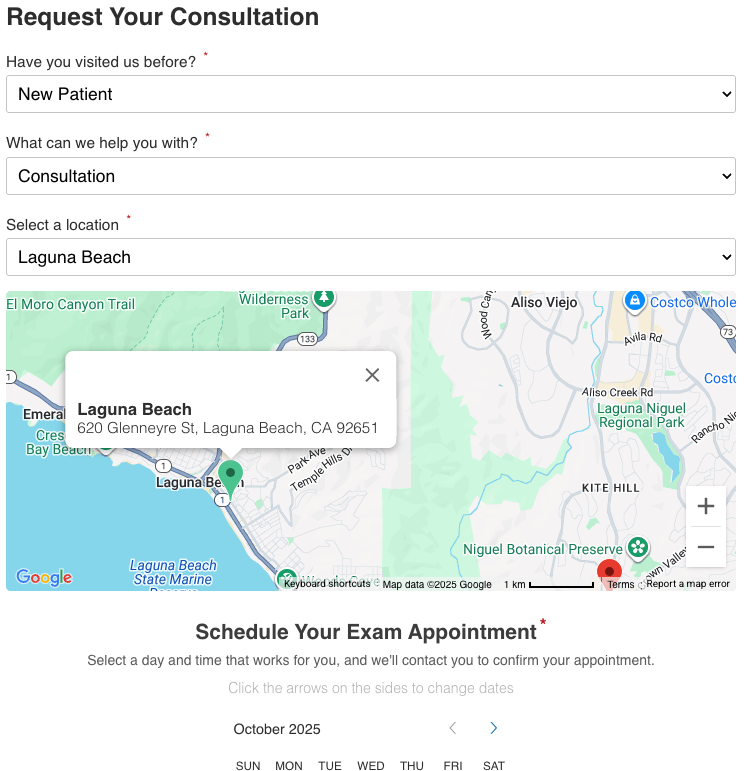

Additional Info
This setting will require more information from the user before they submit the form. The options will include asking the user whether they are a new patient, what services they are interested in, and how they heard about your practice (if they are new).
<div id="waveInquiryForm"
     data-doctor-id="test"
     data-show-patient-status="true"
     data-show-services="true"
     data-show-references="true"></div>
<iframe src="https://wave-wes.s3.us-west-1.amazonaws.com/v8/index.min.html?data-doctor-id=test&data-show-patient-status=true&data-show-services=true&data-show-references=true"></iframe>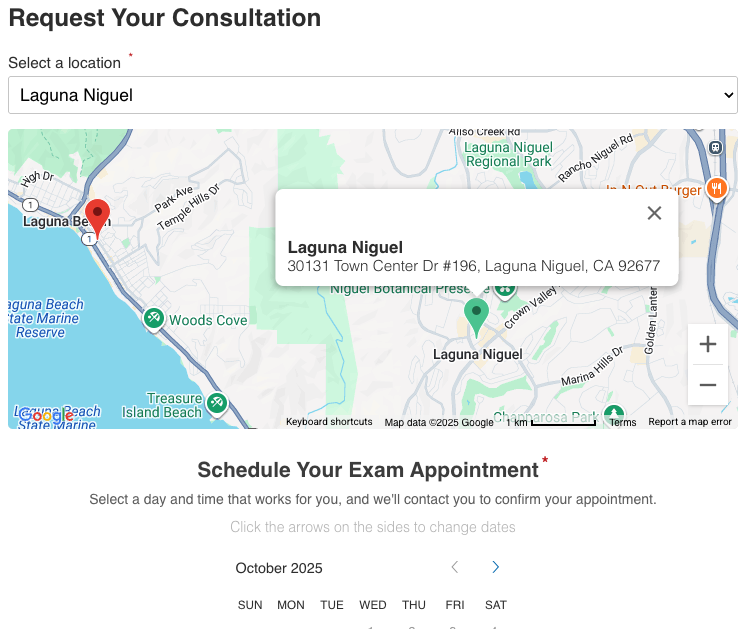
Default Location
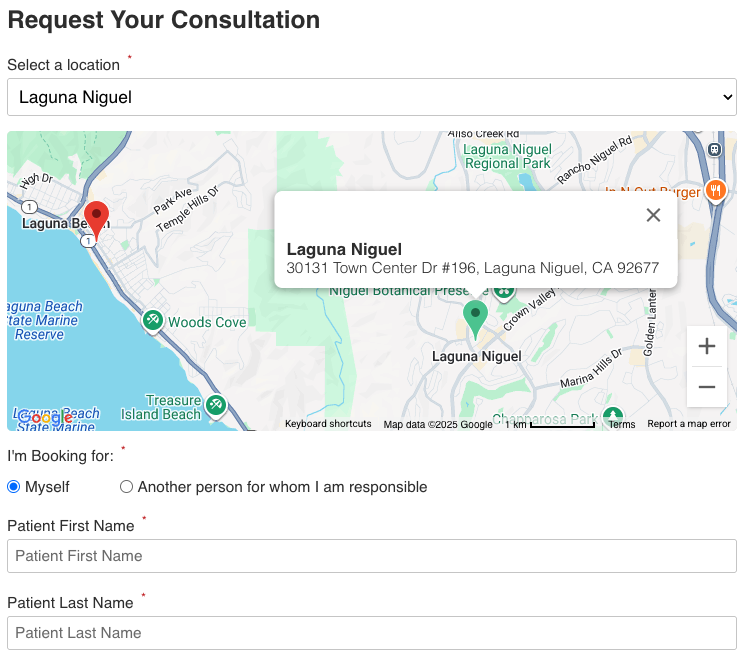
This setting will allow you to select the name of the location that you want to be the default value. By default, the form selects the first location as the default, but you can override it by changing the value in this attribute. You can use the name of the location or the number that it appears in the list of locations.
<div id="waveInquiryForm"
     data-doctor-id="test"
     data-default-location="Laguna Niguel"></div>
<iframe src="https://wave-wes.s3.us-west-1.amazonaws.com/v8/index.min.html?data-doctor-id=test&data-default-location=Laguna%20Niguel"></iframe>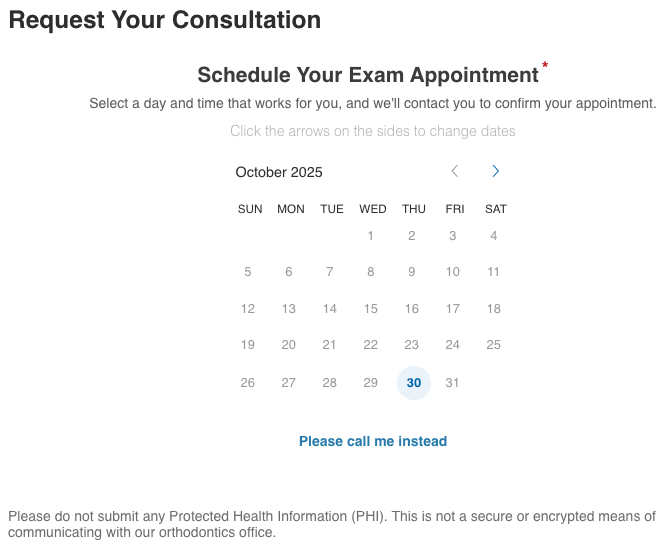
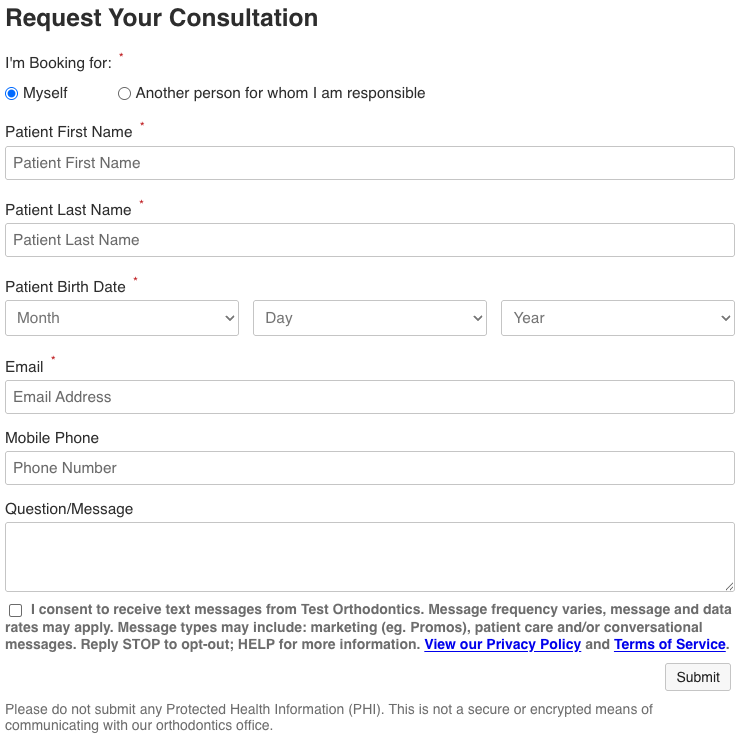
Hide Locations, Default Location
This setting will hide the locations from the user, so they cannot select any other location. This is a great layout for a page that is dedicated to a specific location. By setting the default location as well*, the Exam Scheduler will immediately show the appointments available for that location only.
<div id="waveInquiryForm"
     data-doctor-id="test"
     data-hide-locations="true"
     data-default-location="Laguna Niguel"></div>
<iframe src="https://wave-wes.s3.us-west-1.amazonaws.com/v8/index.min.html?data-doctor-id=test&data-hide-locations=true&data-default-location=Laguna%20Niguel"></iframe>* If you don't set a default location when hiding your locations, the Exam Scheduler will not appear.
* If you are using the Google Maps integration, hiding the locations will also hide the map. To show the only location on the map, use the "data-show-default-location-only-on-map" attribute, setting it to true.
* If you only have one location, the location dropdown will always be hidden.
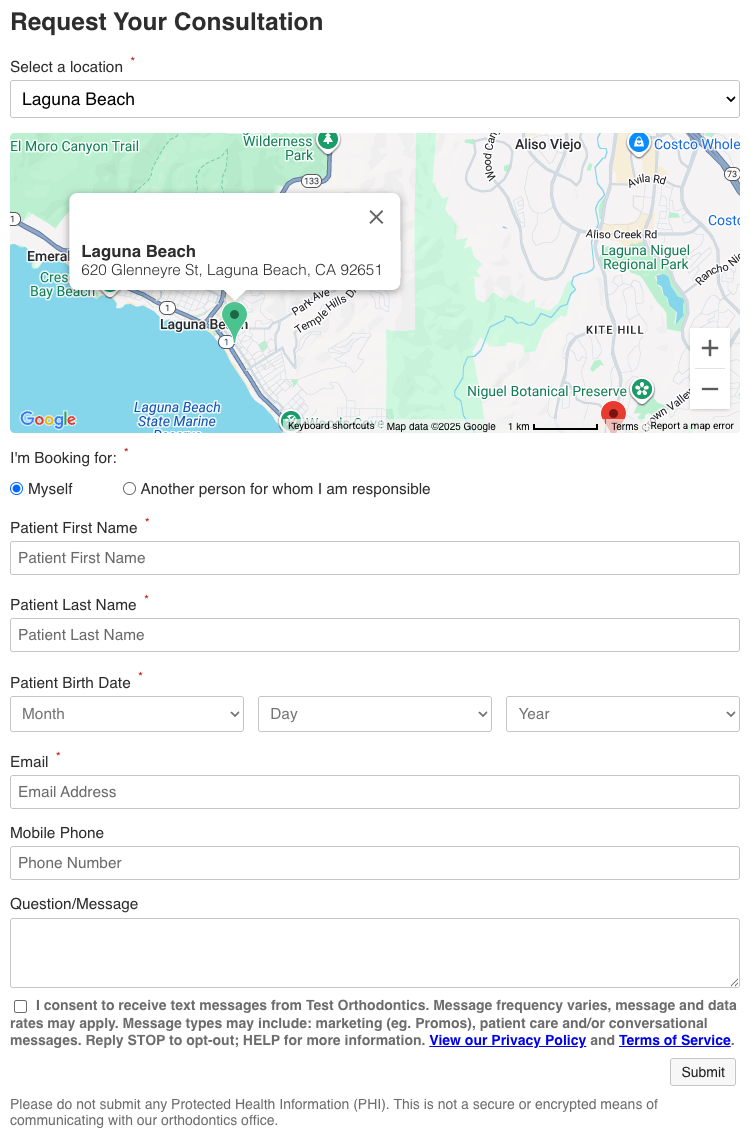
Hide Exam Scheduler
This setting will hide the exam scheduler, forcing the form to be a simple message delivery service from your patients to your office.
<div id="waveInquiryForm"
     data-doctor-id="test"
     data-show-appointment-scheduler="false"></div>
<iframe src="https://wave-wes.s3.us-west-1.amazonaws.com/v8/index.min.html?data-doctor-id=test&data-show-appointment-scheduler=false"></iframe>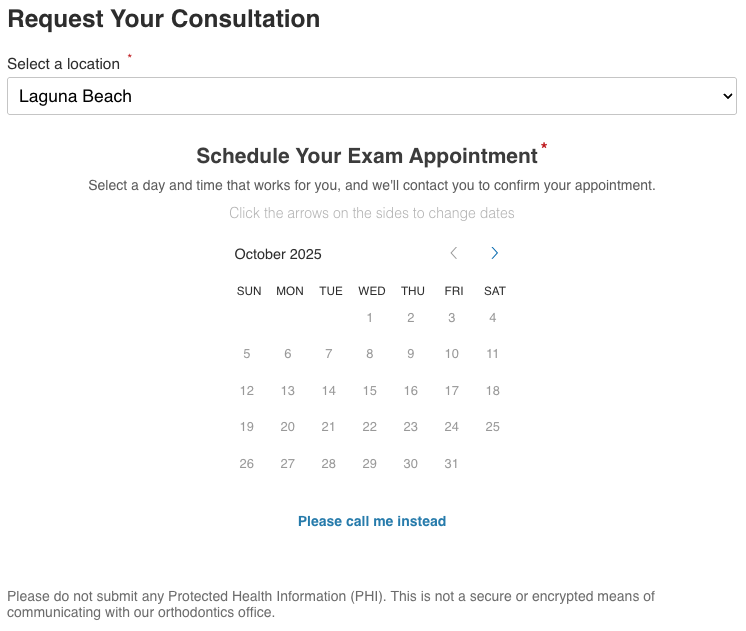
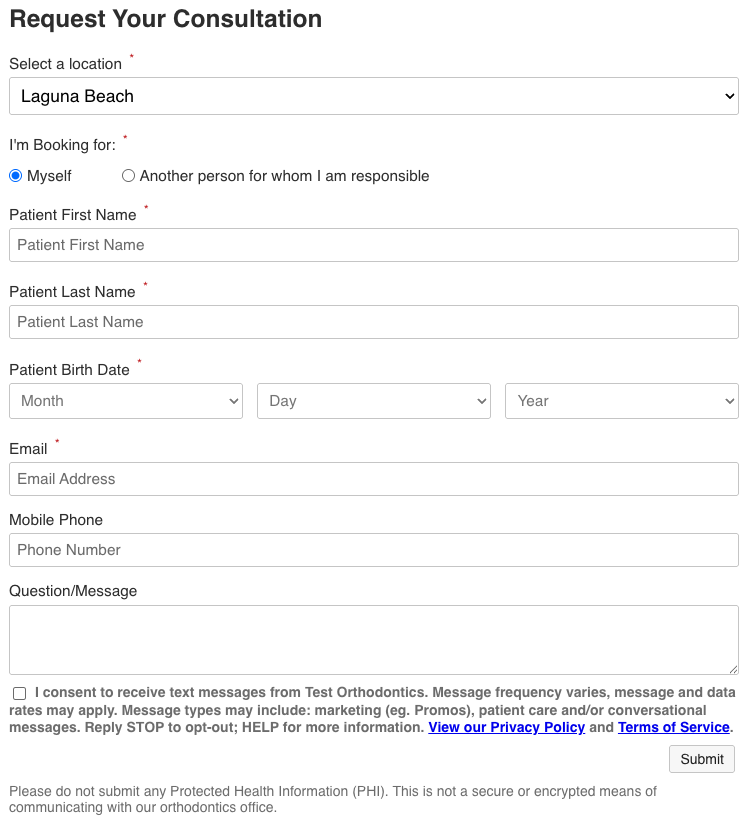
Hide Map
If you are using the Google Maps integration, you can use this setting to hide the map on a certain page.
<div id="waveInquiryForm"
     data-doctor-id="test"
     data-show-map="false"></div>
<iframe src="https://wave-wes.s3.us-west-1.amazonaws.com/v8/index.min.html?data-doctor-id=test&data-show-map=false"></iframe>* The map is shown by default, so anywhere you don't want the map to appear, you'll need to use this setting to hide it.
Show Default Location on Map
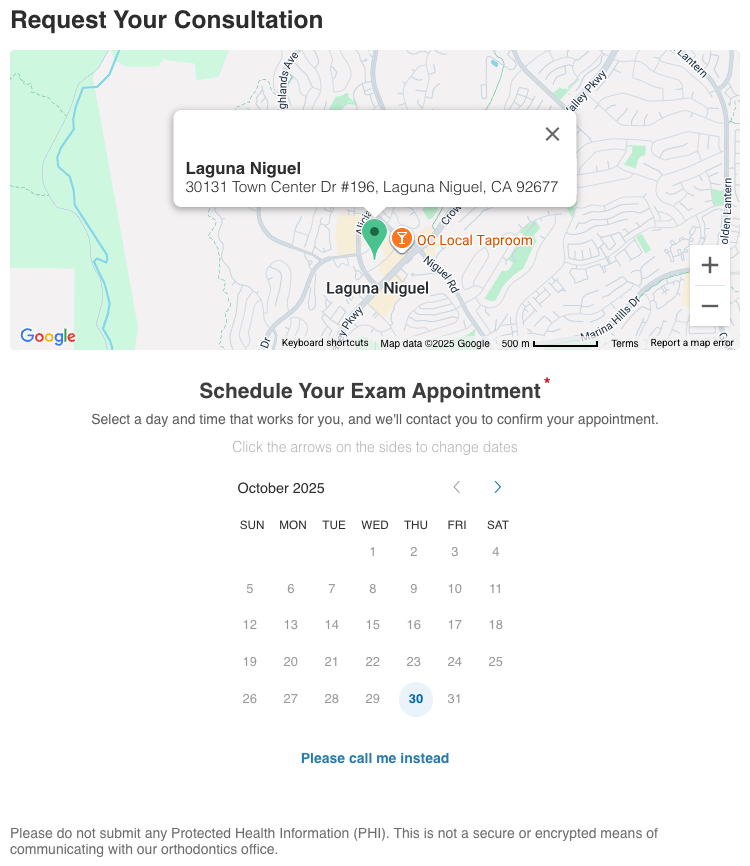
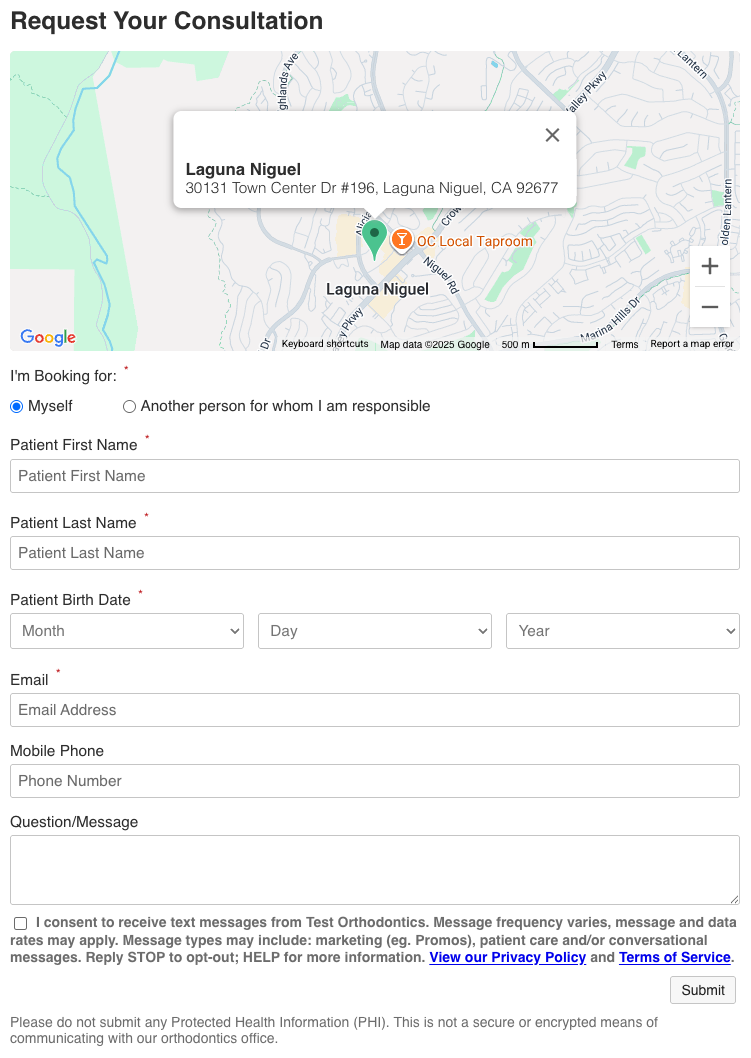
If you are using the Google Maps integration, you can hide the locations, but still display it on the map.*
<div id="waveInquiryForm"
     data-doctor-id="test"
     data-hide-locations="true"
     data-show-default-location-only-on-map="true"
     data-default-location="Laguna Niguel"></div>
<iframe src="https://wave-wes.s3.us-west-1.amazonaws.com/v8/index.min.html?data-doctor-id=test&data-hide-locations=true&data-show-default-location-only-on-map=true&data-default-location=Laguna%20Niguel"></iframe>* If you only have one location, it will always appear on the map, unless you hide the map.
Exam Scheduler Behavior
You can change certain behaviors of the Exam Scheduler by changing your settings in your WaveOrtho application. These settings are global, and will affect how the exam scheduler behaves every time it loads on any page. You can make several changes about showing booked appointments, showing hourly placeholder appointments on days you are not open, and choosing to let the patient book an appointment for the same day, along with the number of hours away the appointment must be.
Check out the Exam Scheduler page for information on how to update these settings.
Where to now? We recommend you take a look at the Documentation Documentation page for a full list of the customization options or take a look at the Troubleshooting Troubleshooting page for list of possible solutions to issues you might experience while using the Inquiry Form & Exam Scheduler.